
Setups
General information
Wirnet™ iBTS information
Wirnet™ iFemtoCell information
Wirnet™ iFemtoCell-evolution information
Wirnet™ iStation information
System management
Network management
LoRa Features
KerOS customization
Support and resources

Setups
General information
Wirnet™ iBTS information
Wirnet™ iFemtoCell information
Wirnet™ iFemtoCell-evolution information
Wirnet™ iStation information
System management
Network management
LoRa Features
KerOS customization
Support and resources
This is an old revision of the document!
To connect to the web interface, enter the IP address of your gateway into your browser’s URL bar (Make sure your computer is on the same local network).
The default credentials are:
Login:admin
Password:pwd4admin
The web interface allows to:
The overview menu provides the network connectivity status as well as the firmware version, the hardware serial number, and the system status.
| Wirnet iBTS Web_UI | Wirnet iFemtoCell Web_UI |
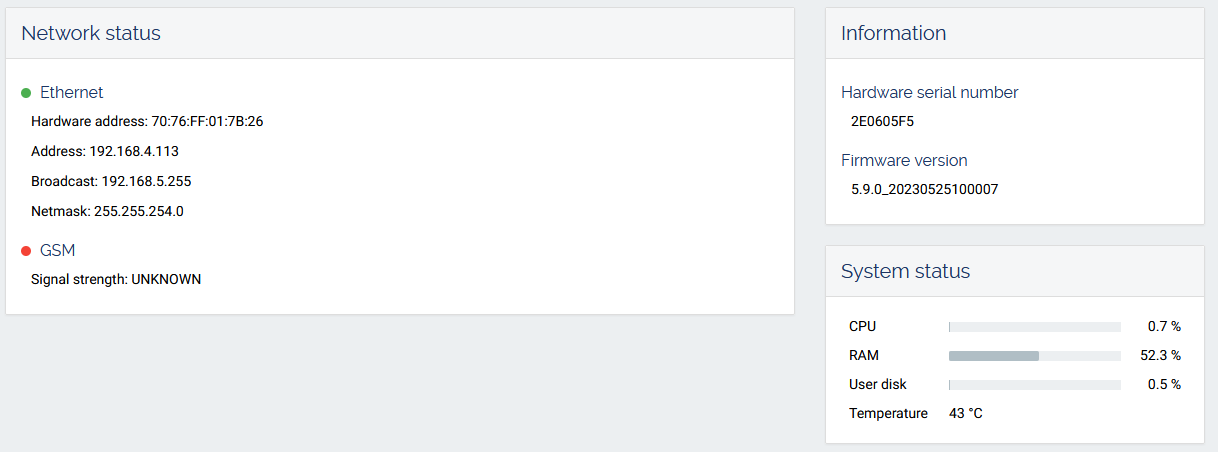 | 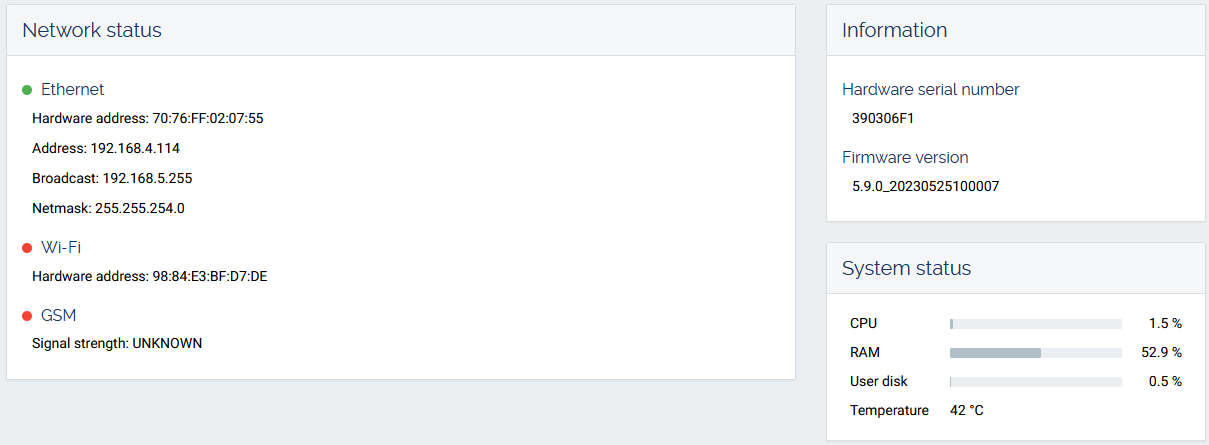 |
The network can be easily configured thanks to the web interface.
Two parameters can be configured:
lan.config in the /etc/network/connman/ directory, this configuration file will prevail, and will prevent the web interface to modify the IPv4 configuration. rm /etc/network/connman/lan.config /etc/init.d/connman restart
Starting with 4.1.2 firmware, modifications done in /etc/network/connman/*.config files are seen on web interface and modification done in web interface will be written in /etc/network/connman/*.config files.
The GSM access can be configured in the web interface.
A list of Mobile Network Code / Mobile Country Code can be found on mcc-mnc.com.
To connect to a Wi-Fi network:
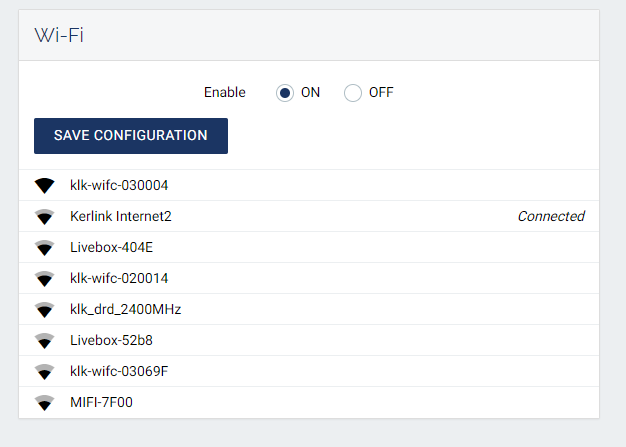
Starting with 4.1.6 firmware, you can also configure a not detected WiFi network (give SSID and passphrase).
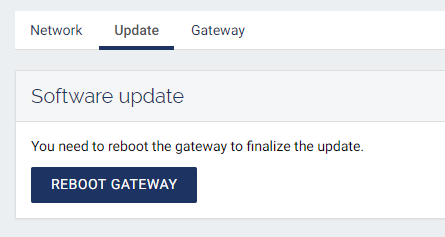
Drag & drop your ipk file and click on UPDATE GATEWAY.
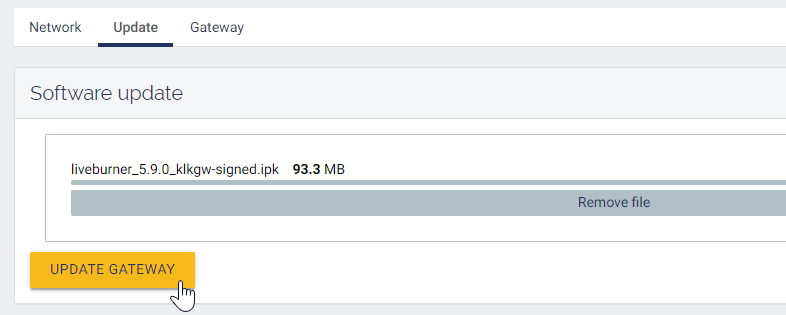
A reboot is required to finalize the update, click on REBOOT GATEWAY.
Several actions can be triggered from the Gateway tab:


